


Table of Contents
Monitor Arm Desk Mounts: What They Are and Why They Matter
A monitor arm desk mount is an adjustable bracket system designed to raise your display off the desk and enable flexible positioning. Unlike basic monitor stands, these arms clamp or screw onto a desk, letting you change height, angle, and even orientation with a single touch. Their popularity is booming: according to Growth Market Reports and Straits Research, the global market size ranges from USD 1.55 to 2.14 billion in 2024, with North America accounting for about 40% of sales.

Why such rapid growth? Remote and hybrid work shifted the importance of ergonomic desk setups. Companies and home users alike want healthier workstations, driving the adoption of both single and dual monitor riser arms. Sit-stand variants are also hot, reflecting the evidence-backed move away from sedentary habits. The right monitor arm desk mount frees up your desk, adjusts in real time, and can help reduce neck and back strain. But only if you select the correct product for your setup.
Looking to overhaul your entire desk? Integrate your monitor arm investment with smarter storage by considering L shaped desks or a standing desk converter for ultimate flexibility and ergonomic returns.
How To Choose and Install a Monitor Arm Desk Mount: Step-by-Step
Selecting and installing a monitor arm desk mount takes more than picking the first affordable option on Amazon. Here’s a proven, mistake-avoiding process for success.
- Measure Your Monitor and Desk
- Weigh your monitor (or check manufacturer specs).
- Check VESA compatibility—most modern monitors use 75x75mm or 100x100mm square hole patterns for mounting.
- Measure desk thickness where you intend to clamp the arm. Most products fit 0.4–2.4 inches, but always check specs to avoid returns.
- Choose the Right Arm Type
- Single arm for one monitor, dual arm for two. Sit-stand models provide maximum adjustability, though they cost more.
- Check each arm’s maximum weight rating—typically 4.4–17.6 lbs per arm as per market averages.
- Decide on articulating (full motion) vs. basic height-adjustable models.
- Check Desk Compatibility—Clamp vs. Grommet
- Clamp is fastest, but requires a desk edge.
- Grommet (bolt-through) is more stable but requires drilling a hole—best for heavy or extra-wide monitors.
- Plan Cable Management
- Look for built-in cable channels or add zip ties to reduce clutter.
- Plan cable length: arms extend the monitor further from your desk’s rear edge, so check that cables will still reach.
- Install Safely and Test Adjustments
- Align VESA holes precisely; do not overtighten to avoid cracking the monitor shell.
- Adjust tension for your monitor’s weight—many use a simple allen wrench.
- Test full range of motion—height, tilt, swivel, and rotation—before loading up the rest of your workspace.
For step-by-step compatibility, see the strategies used when picking a space-saving table or a sofa with pull out bed—same principle: measure twice, buy once.
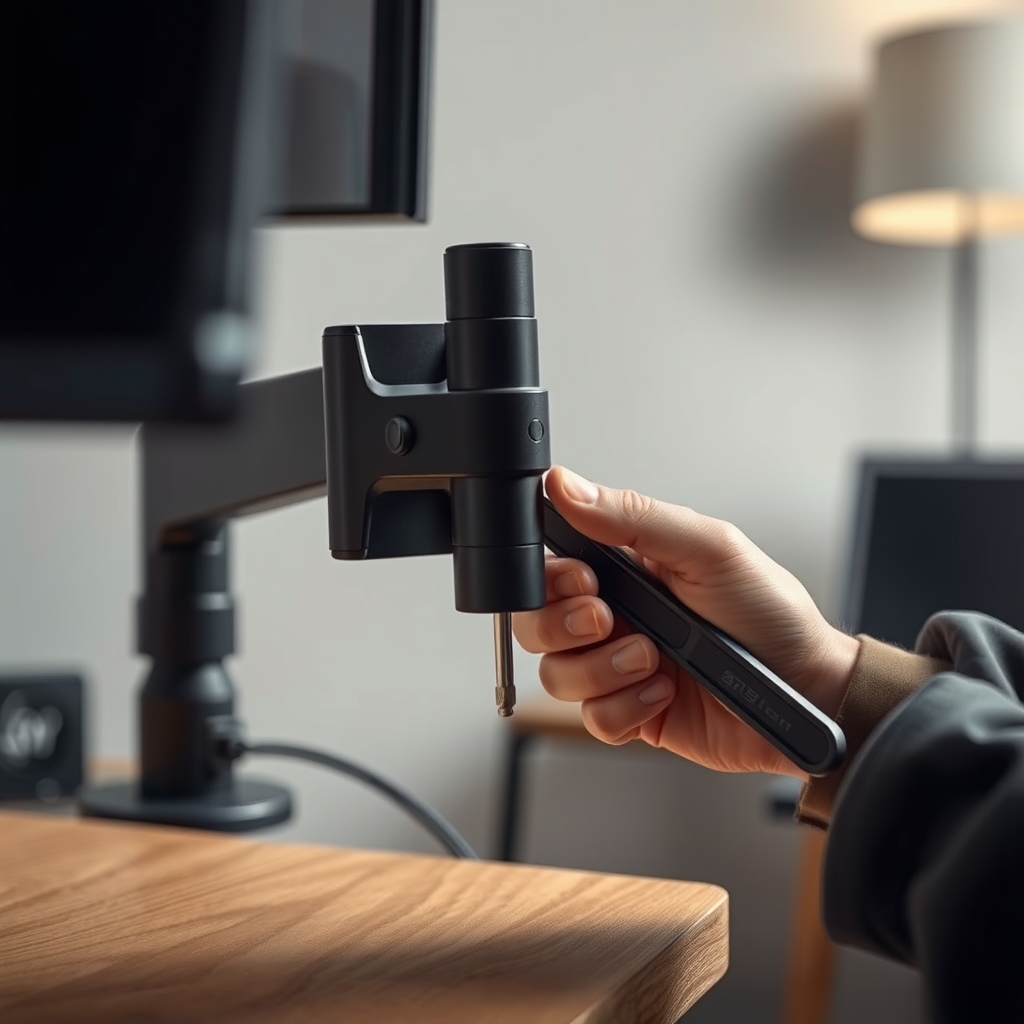
Want more modular workspace ideas? Integrate with a modular bookcase system to keep reference material at arm’s reach, or upgrade your seating for total ergonomic coverage with an ergonomic chair.
Critical Analysis: Pitfalls, Market Realities, and What Most Guides Miss
Most monitor arm guides skip over crucial pain points that can lead to wasted time, damaged desks, or unusable mounts. Here’s what market research and user forums imply, plus a realistic look at pricing, technical gaps, and installation hurdles.
Common Pitfalls
- Poor Desk Fit: Many arms only fit desks up to 2 inches thick—solid wood or IKEA-style desks may be too dense or too shallow at the edge for clamping.
- Weight Mismatch: Monitors at the very upper end of weight capacity may slowly droop over weeks unless the arm’s tension is dialed in perfectly.
- Missing VESA Holes: Some cheap monitors lack standard VESA holes or require a proprietary bracket.
- Wobble: Budget arms can transfer typing vibrations and wobbles, especially on thin or lightweight desks.
- Cable Slack: Not budgeting for longer cables leaves your screen stuck partway out or creates accidental unplugging when you swivel the arm.
Market Realities: Pricing and Brand Gaps
No reliable 2024 price transparency exists in public market data. But indirect signals from Polaris Market Research confirm that market growth is powered by both corporate volume buys and home-office upgrades, likely driving price ranges from budget ($40-$70, e.g., AmazonBasics) to mid-tier ($80-$150, e.g., Monoprice) to premium ($200-$500, e.g., Ergotron, Humanscale), depending on adjustability and number of arms.
| Feature | Data Availability | Typical Range (Industry Assumptions) |
|---|---|---|
| Market Size (Global, 2024) | Complete | USD 1.55B to 2.14B |
| Regional Adoption (North America Share) | Complete | 38% – 40% |
| Weight Capacity (Single Arm) | Incomplete | 4.4–17.6 lbs |
| Monitor Size Supported | Incomplete | 10–27 inches per arm (common) |
| VESA Compatibility | Partial | 75x75mm & 100x100mm (most common) |
| Installation/Desk Compatibility Issues | Missing | Varies by desk edge design/thickness |
| Price by Brand & Spec | Missing | See estimate above |
| Documented User Complaints | Missing | Requires user review data |
There’s a lack of public, Google-ranking posts covering the actual ROI of ergonomic upgrades. While market reports like ReAnIn mention wellness as a driver, few competitor articles cite real data on productivity gains, pain reduction, or time saved—leaving buyers in the dark about measurable benefits.
What Competitor Guides Rarely Cover
- Installation troubleshooting with alternate desk materials (like particleboard or glass tops)
- Step-by-step cable management specific to dual arm setups
- Decision trees for clamp vs. grommet, or interactive compatibility calculators
- Linked ergonomic studies or actual before/after productivity benchmarks
Plan your workspace like you would layer a Japandi-inspired lighting plan: factor in future needs and choose adjustable solutions you won’t outgrow.

Conclusion
Monitor arm desk mount adoption in 2024 is rising for a reason: these products deliver a cleaner, more ergonomic workspace if chosen and installed correctly. Remember to match your gear to your desk and monitor specs, understand the mounting options, and avoid the typical mistakes most buyers make. Use the insights above to make your next monitor arm desk mount purchase smarter, not harder.
Ready to upgrade? Measure first, and invest in quality equipment that delivers all-day comfort and desk clarity.
Frequently Asked Questions
Do all monitors work with a monitor arm desk mount?
No. Monitors must have a compatible VESA mounting pattern (75x75mm or 100x100mm are standard). Some budget or ultra-thin models lack these holes. Always check your monitor’s manual first.
What if my desk is too thick or has a lip?
A standard clamp may not fit. Look for arms with extended clamp ranges or opt for a drill-through grommet mount for thicker desks.
Are dual monitor arms harder to install than single arms?
Dual arms require more precise balancing and cable routing, especially on lightweight desks. Take your time with alignment and tension adjustments.
Can a monitor arm actually reduce back or neck pain?
A well-placed monitor arm can support better posture, helping reduce strain. Although market data shows demand for ergonomic solutions, peer-reviewed outcome studies are rare—so improvements vary by user and by correct setup.
Do monitor arms damage desks?
If used on weak, hollow, or low-quality desk materials, clamps can dent or even split particleboard. Always test placement and tighten gradually. Backing plates can help distribute pressure.